- Frequently Asked Questions
- How to Log In and Edit Data Assets
- How to Publish Data Assets
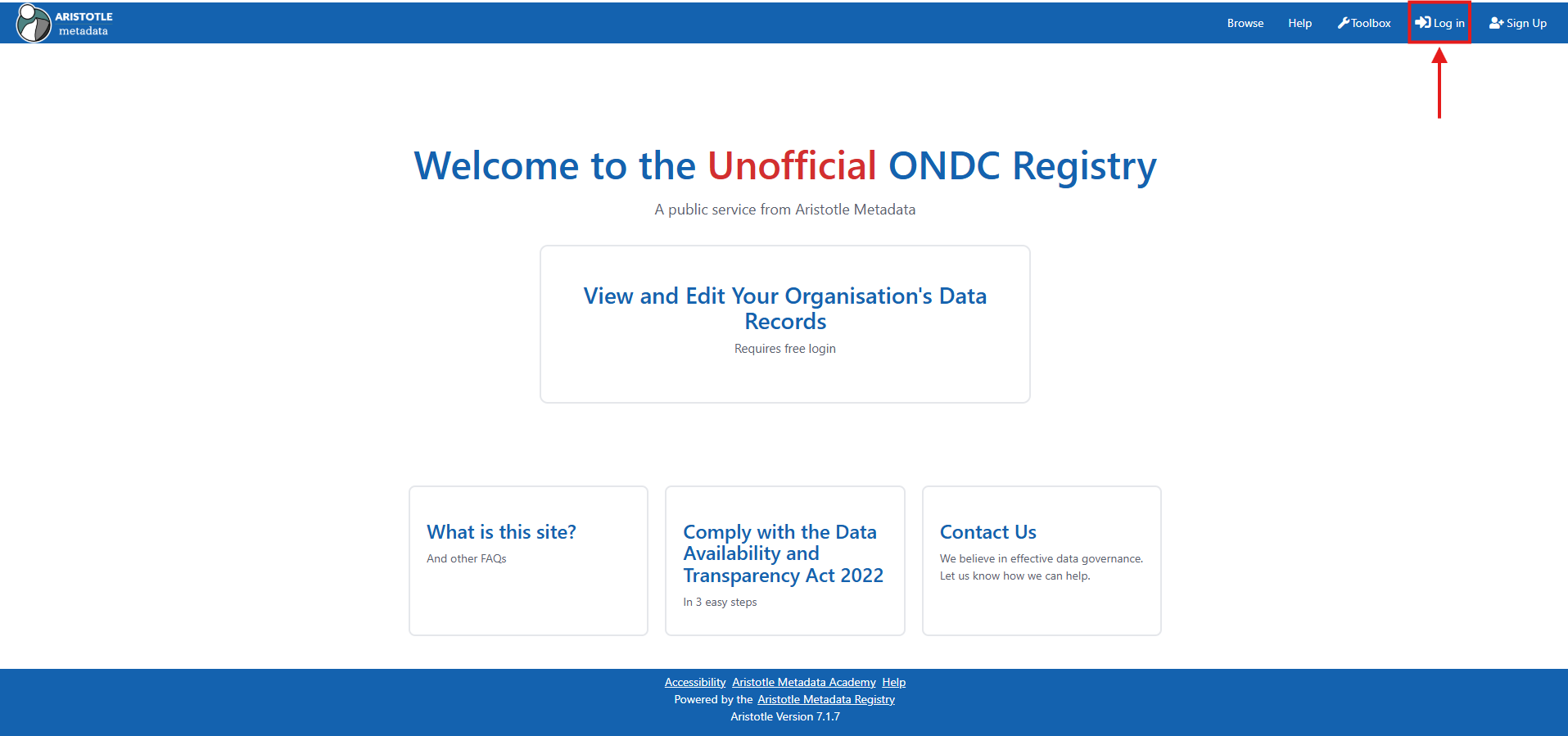
1. Navigate to the Unofficial ONDC Registry home page, then select 'Log in' from the header.
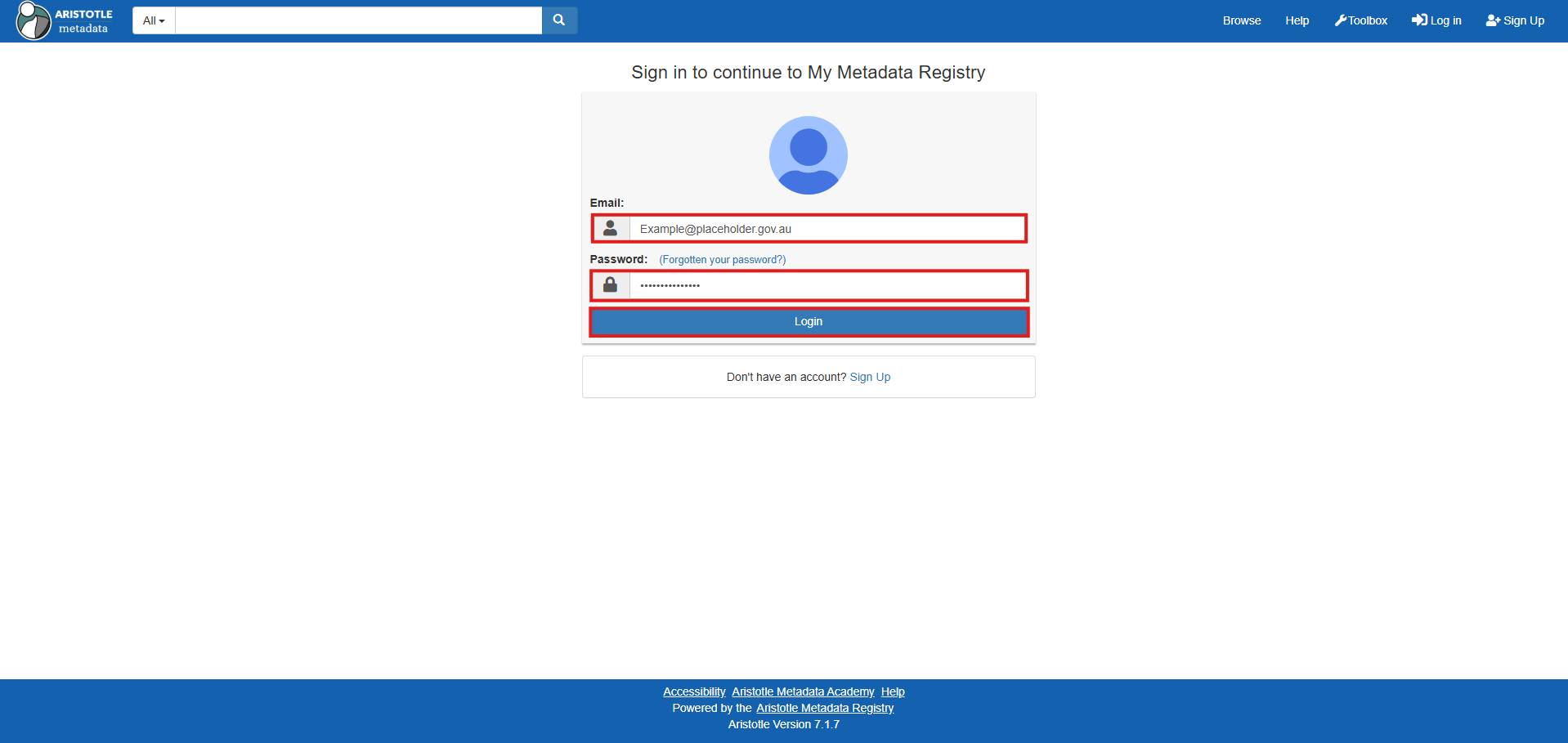
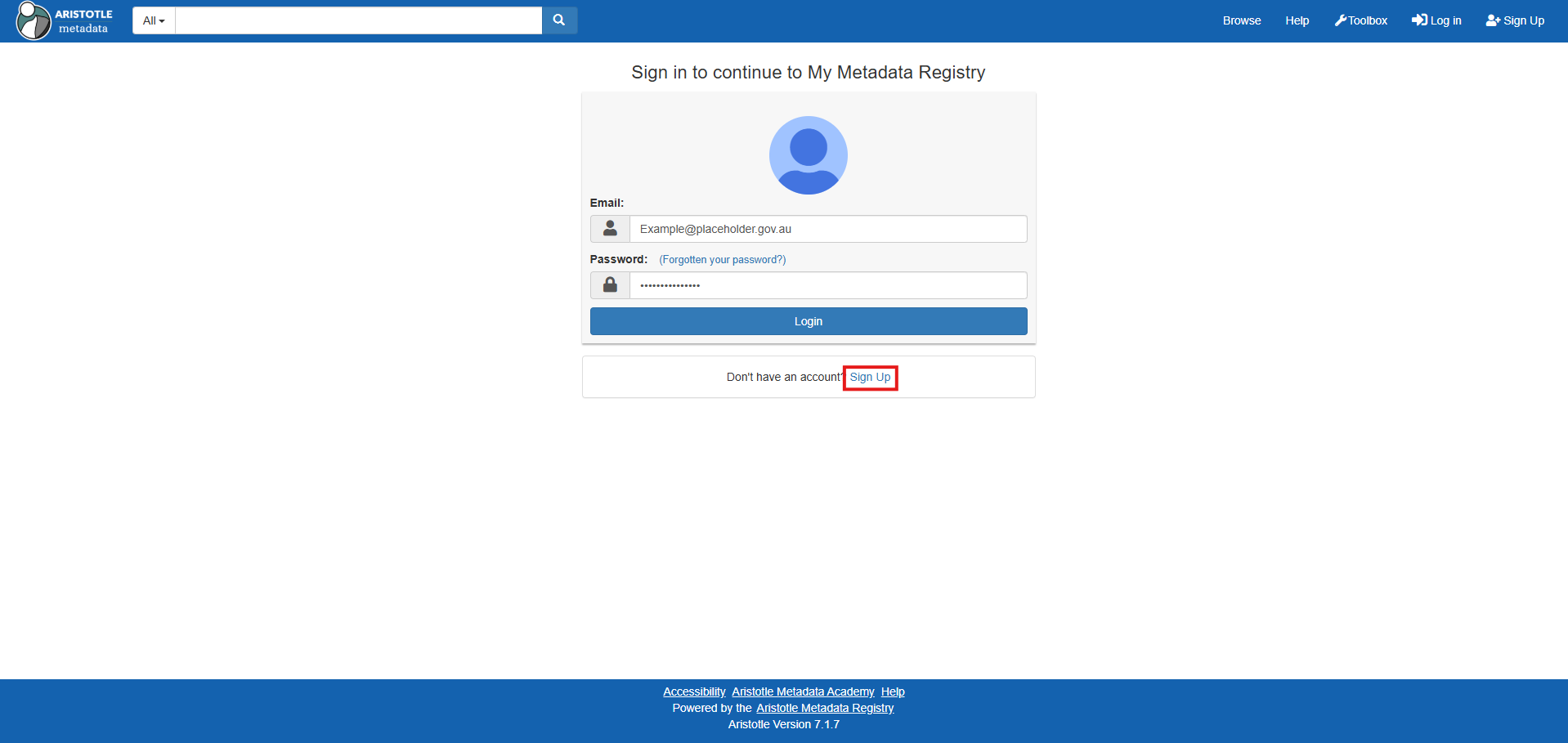
2. If you already have an account, enter your .gov.au email and account password, then select 'Login' and proceed to step 7. If you don't have an account, Select 'Sign Up'.
3. Populate the 'Short name' and 'Full name' fields for your new account.
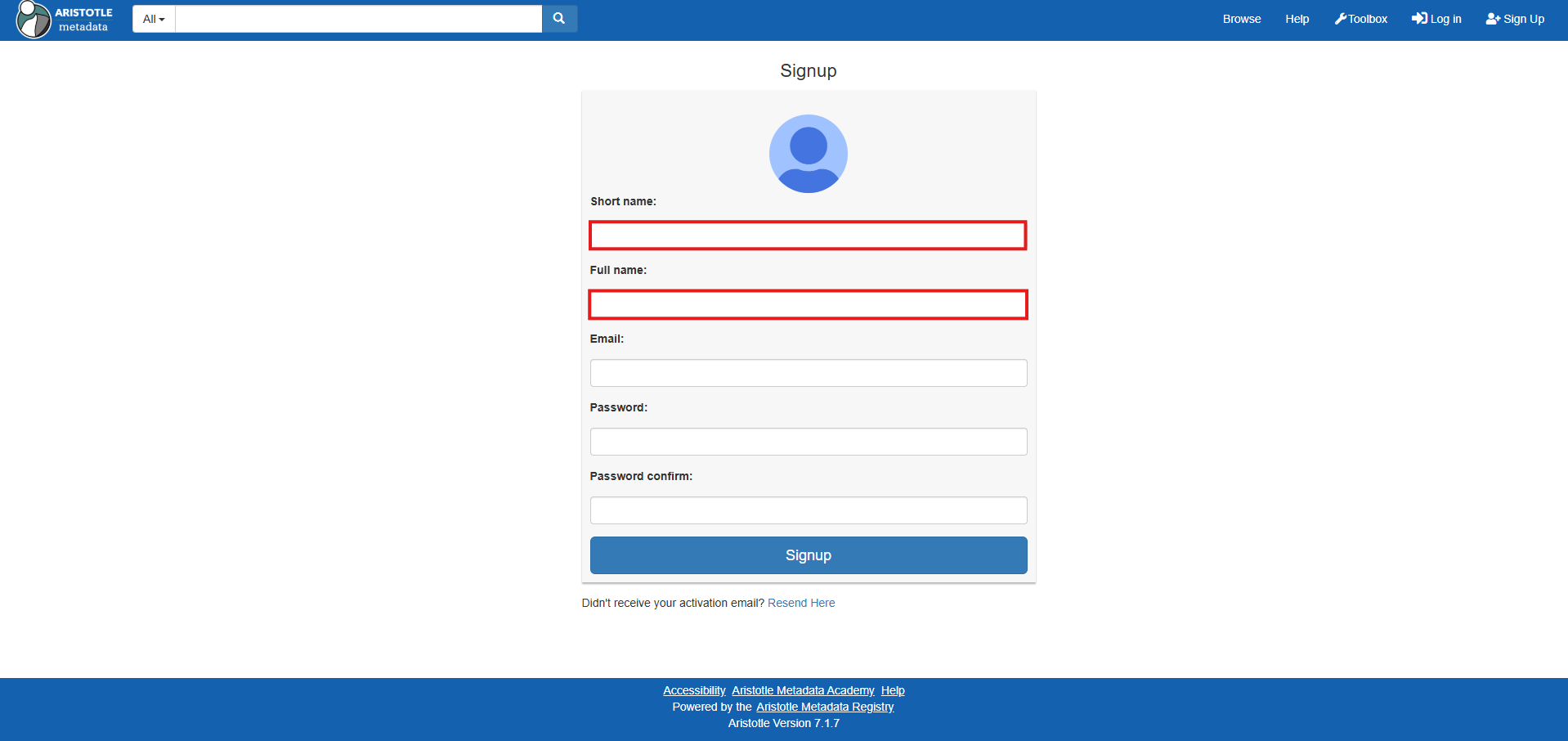
4. Populate the 'Email' field with your .gov.au email, and the 'Password and 'Password confirm' fields with a secure password for your new account.
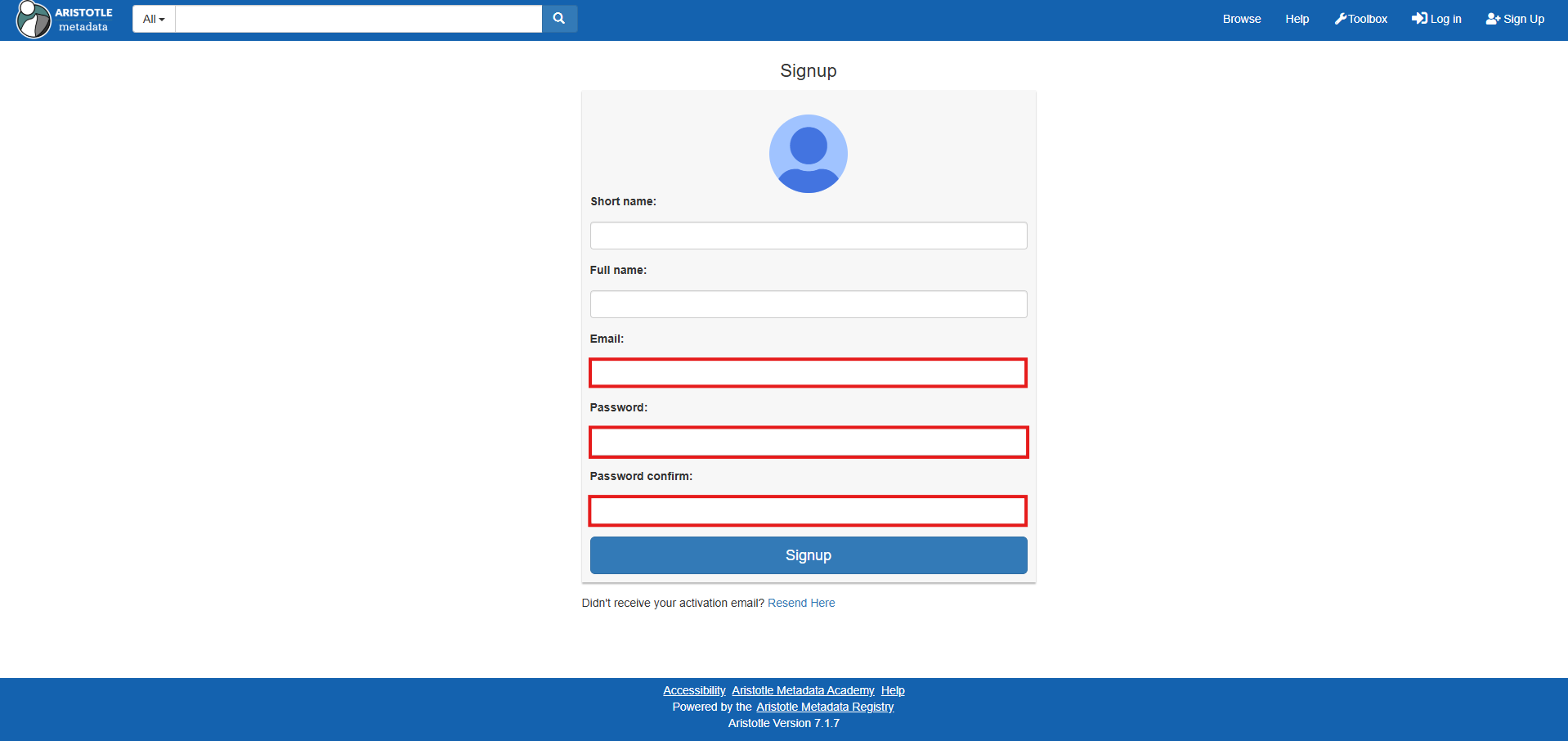
Note: Using your .gov.au email will ensure you are able to access your relevant department's data sets.
5. Select 'Signup'.
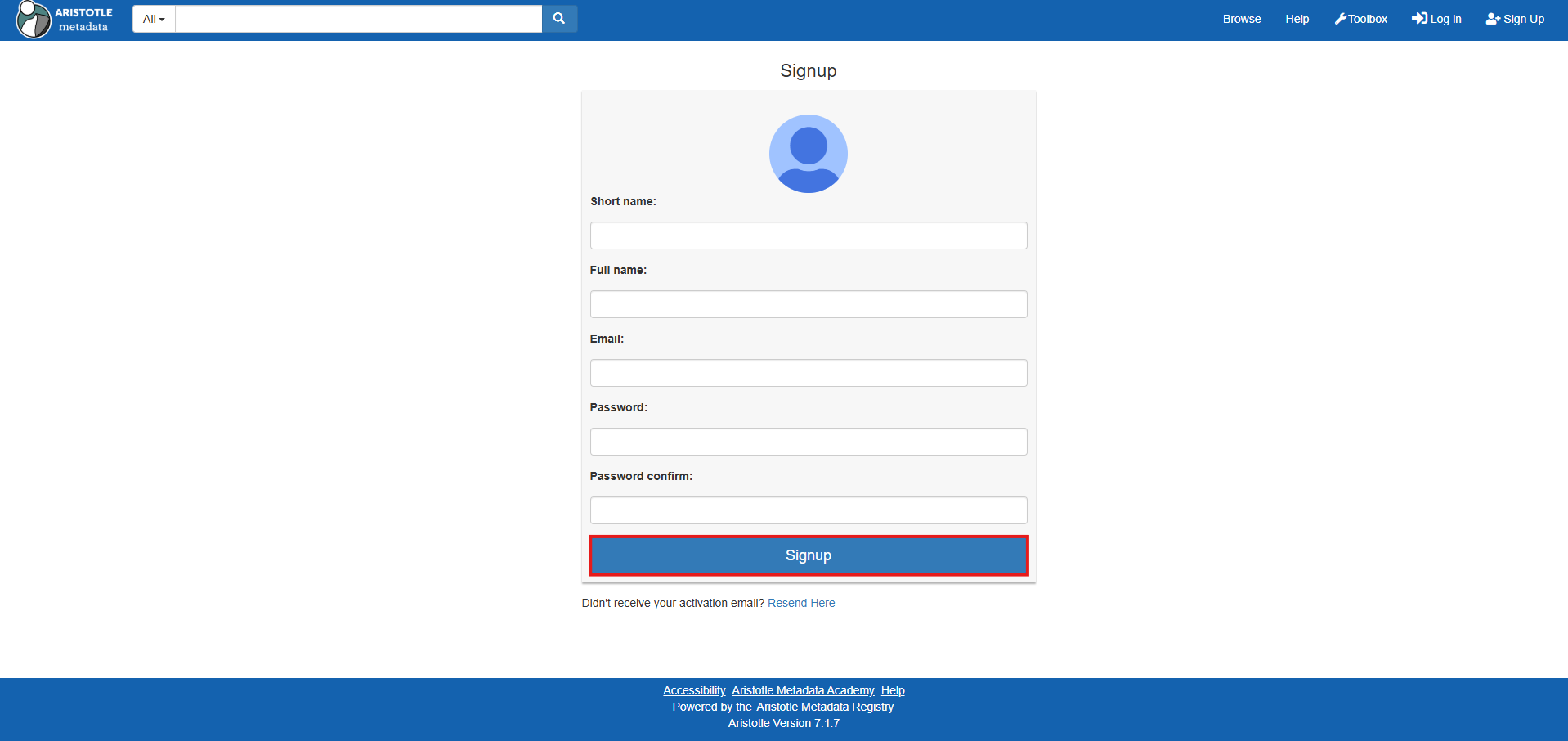
6. An activation email will be sent to the email address you used to sign up. Follow the instructions in the email to activate your account, then log in.
Note: Restart this procedure once your account is activated if you get lost.
7. Now that you're logged in, select 'Organisations' from your dashboard.
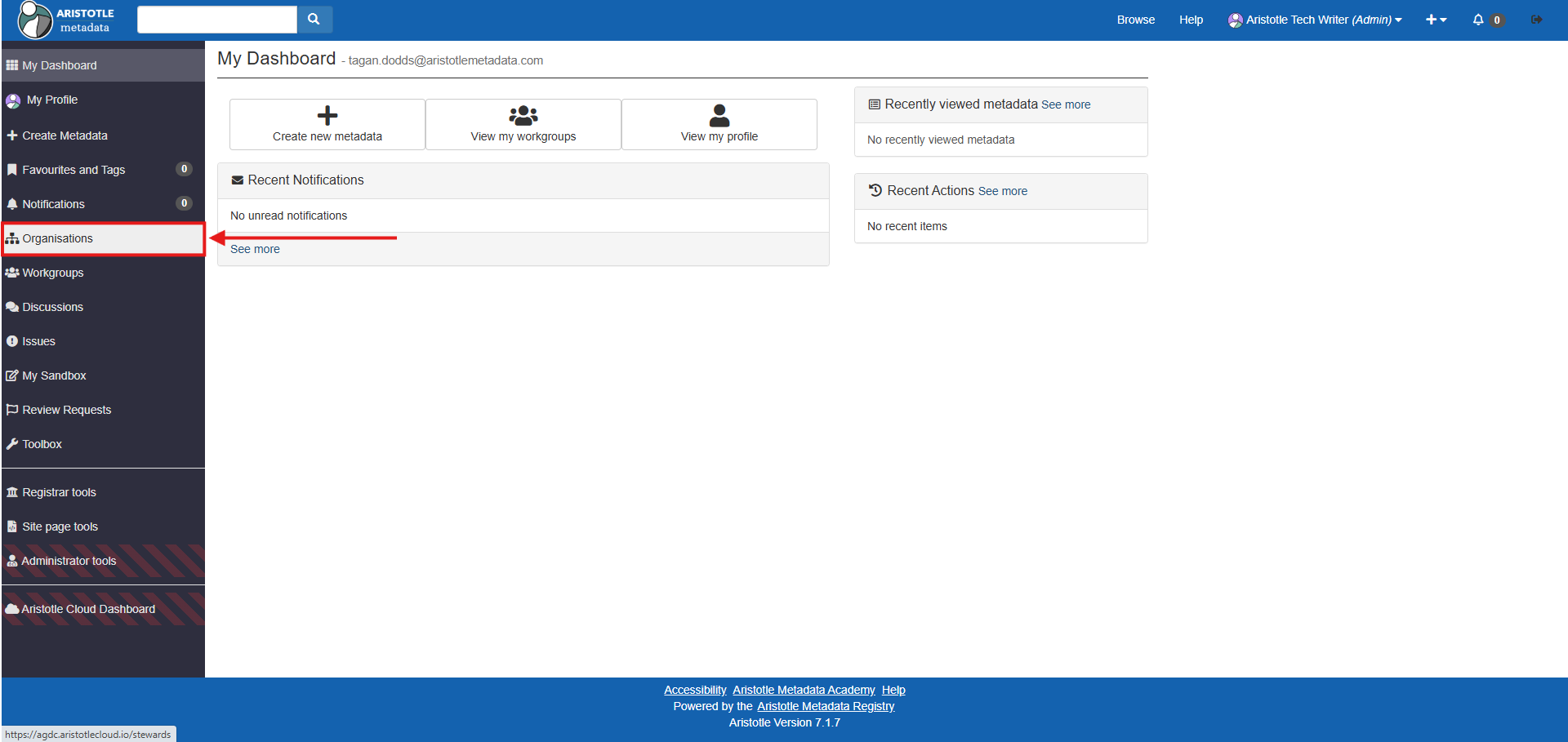
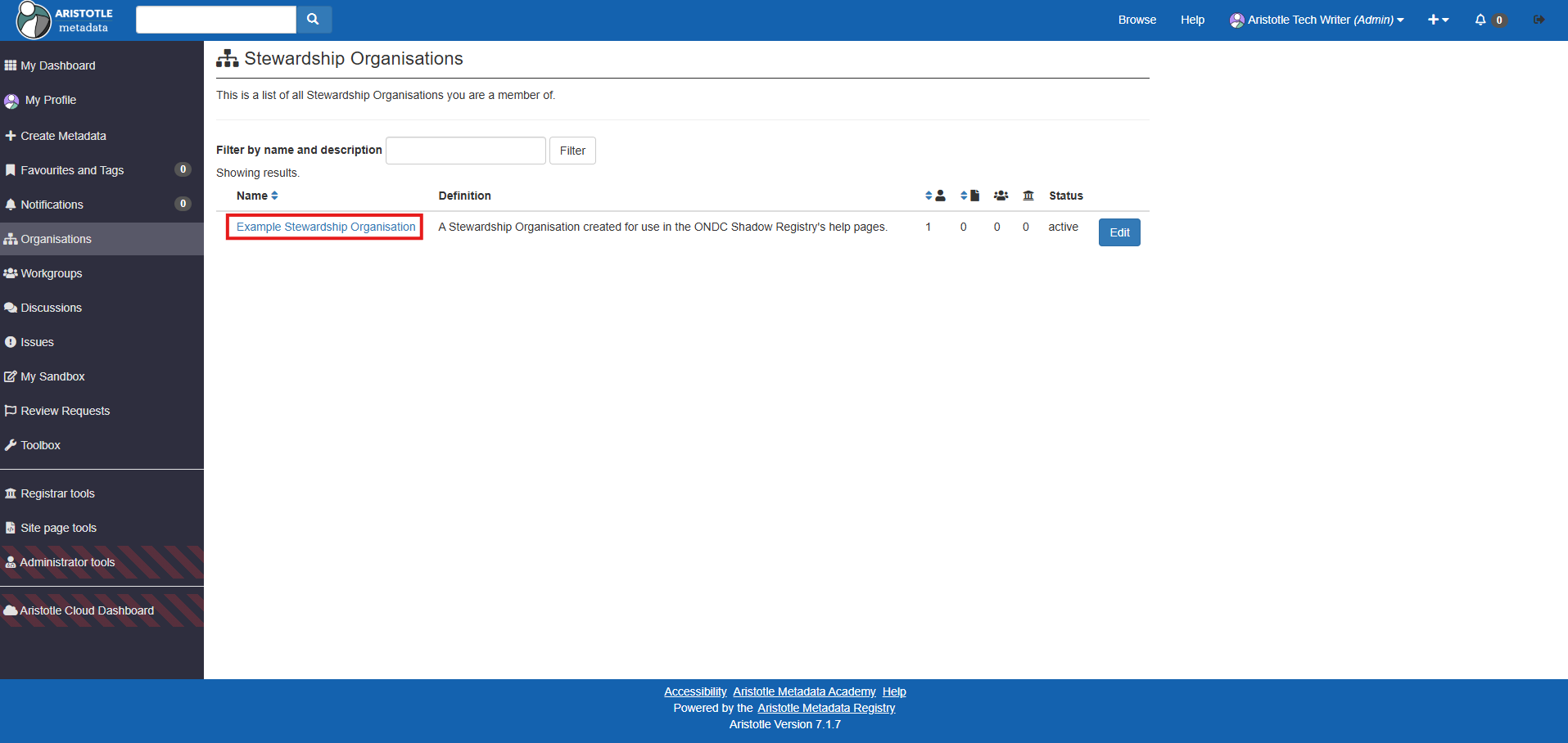
8. Select your department's Stewardship Organisation.
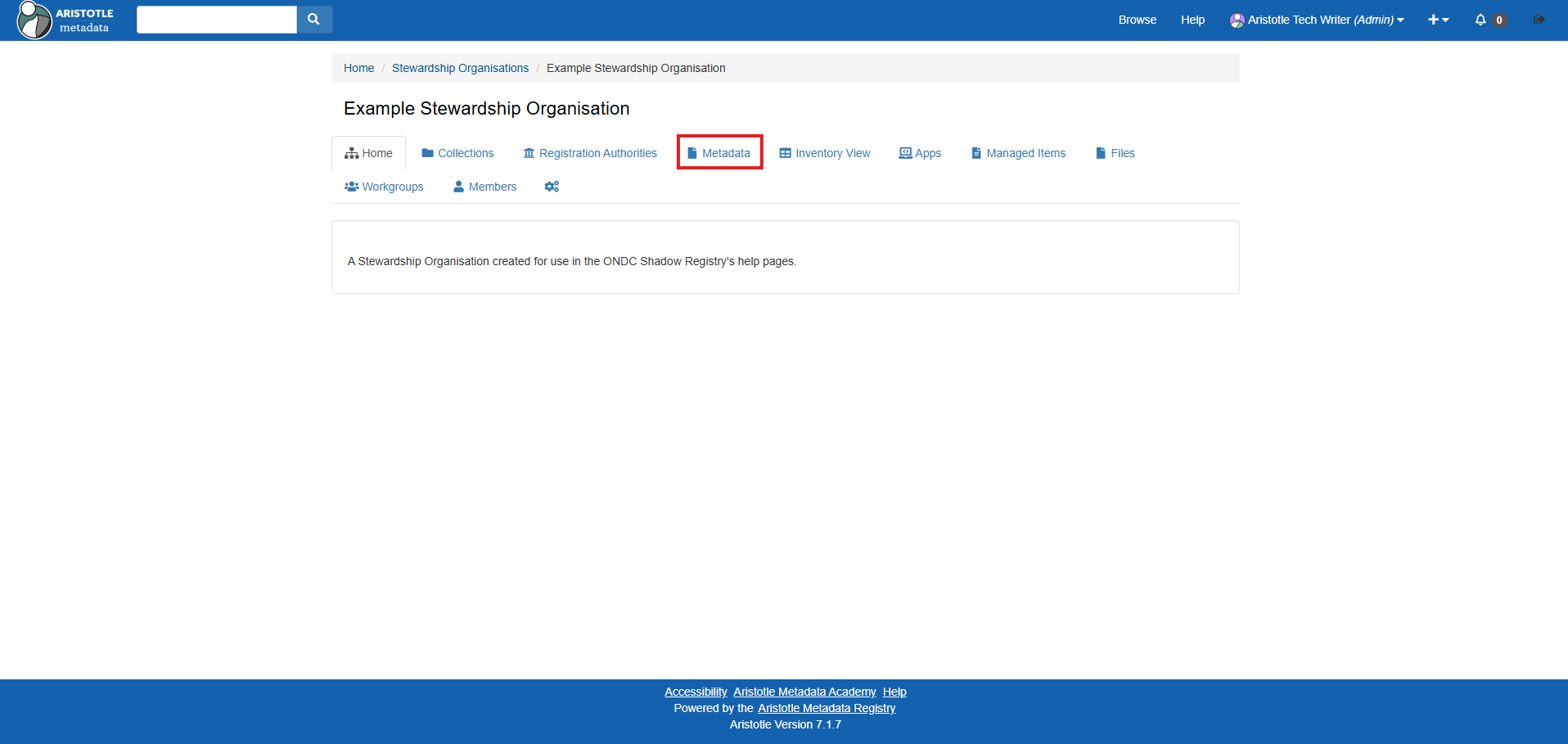
9. Select the 'Metadata tab'.
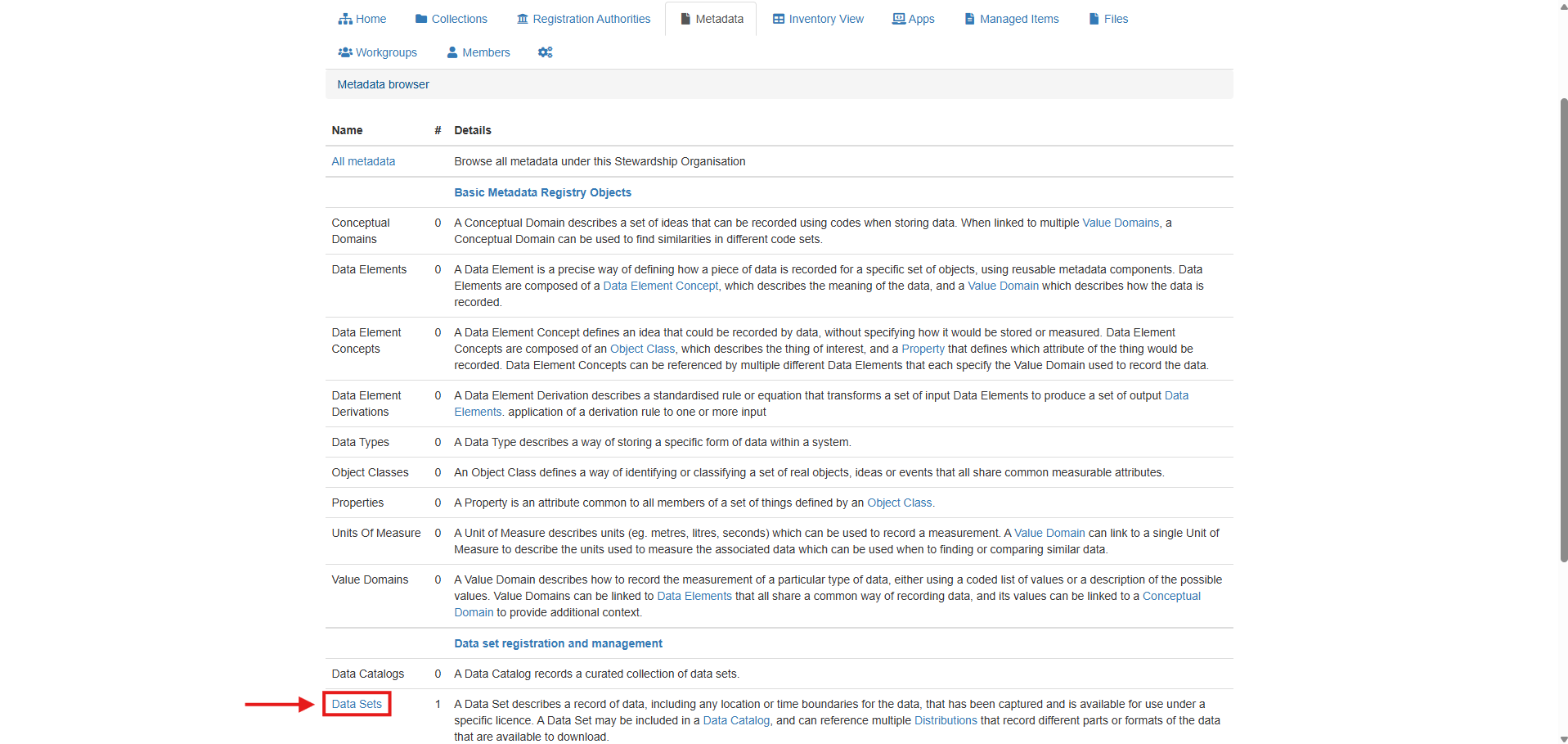
10. Navigate to and select the 'Data Sets' metadata item type.
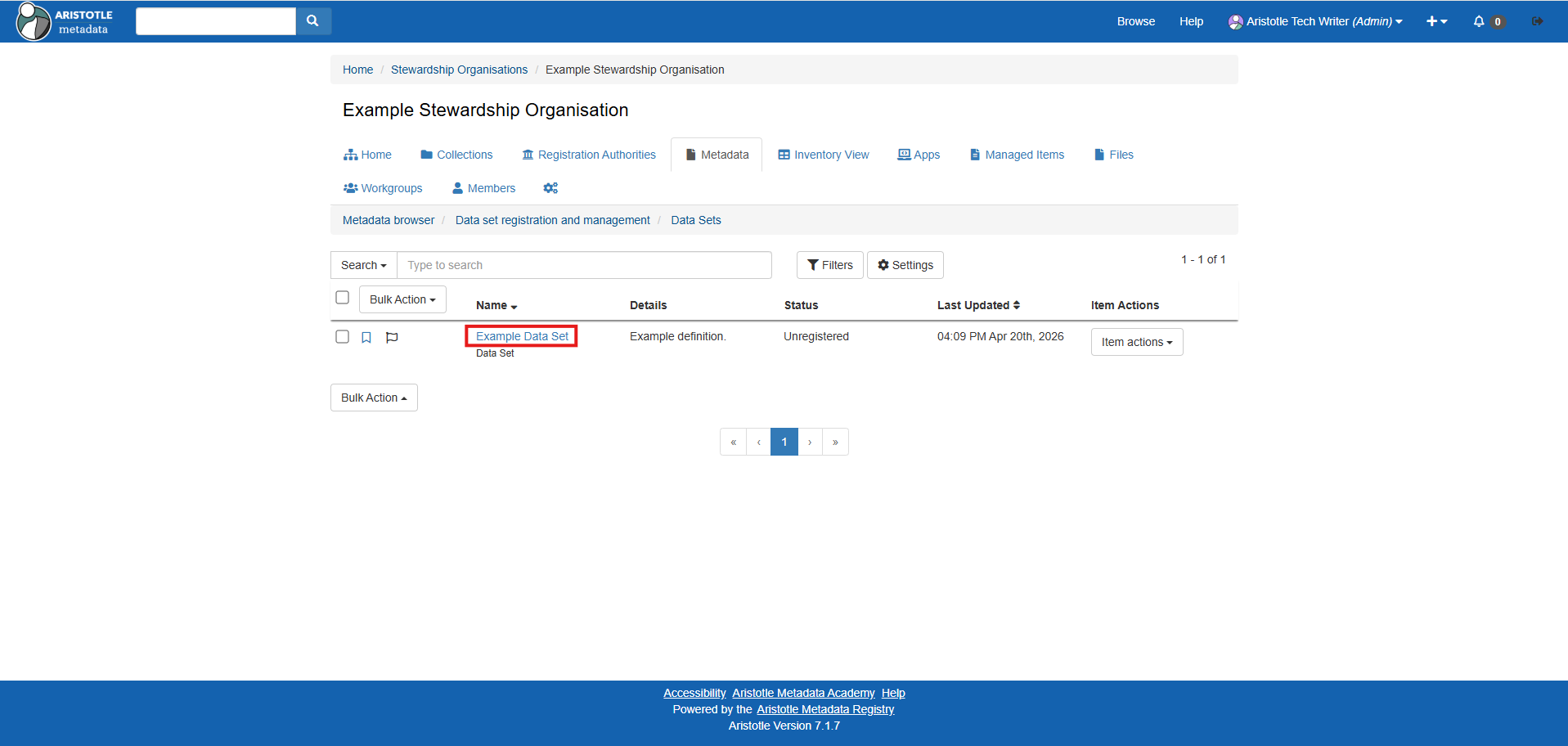
11. Select the name of your desired data set.
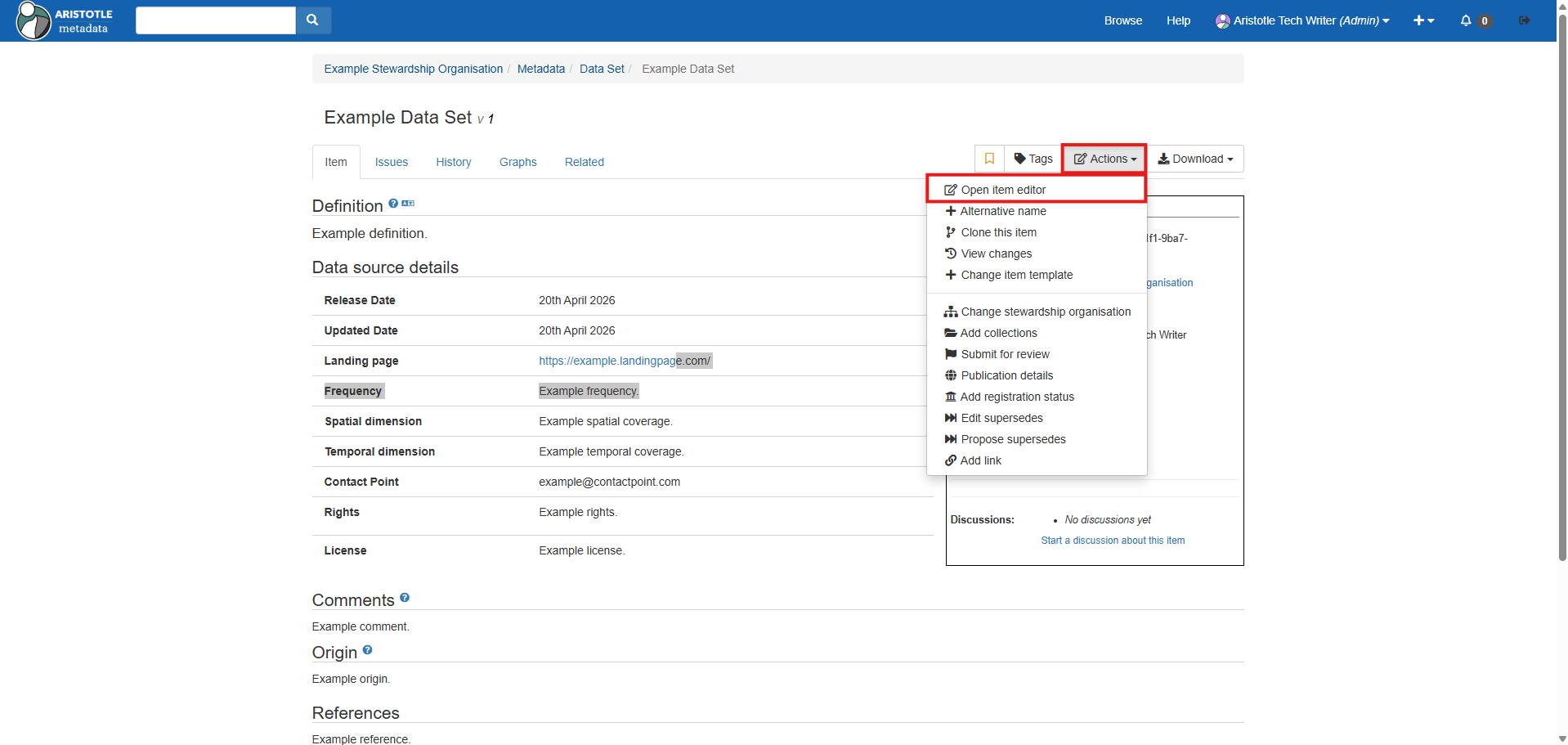
12. Select the data set's 'Actions' dropdown, then 'Open item editor'.
13. Edit the fields in the following tabs as desired:
- Definition: Fields related to basic identification and ownership of the data set
- Names & References: Fields related to data that is referenced by or refers to this data set
- Components: Additional fields which can be added to a data set
- Slots: Custom fields as configured by an Aristotle superuser to reflect additional ONDC data set fields
- Identifiers: Namespace/identifier fields which can be used to add additional context to a data set
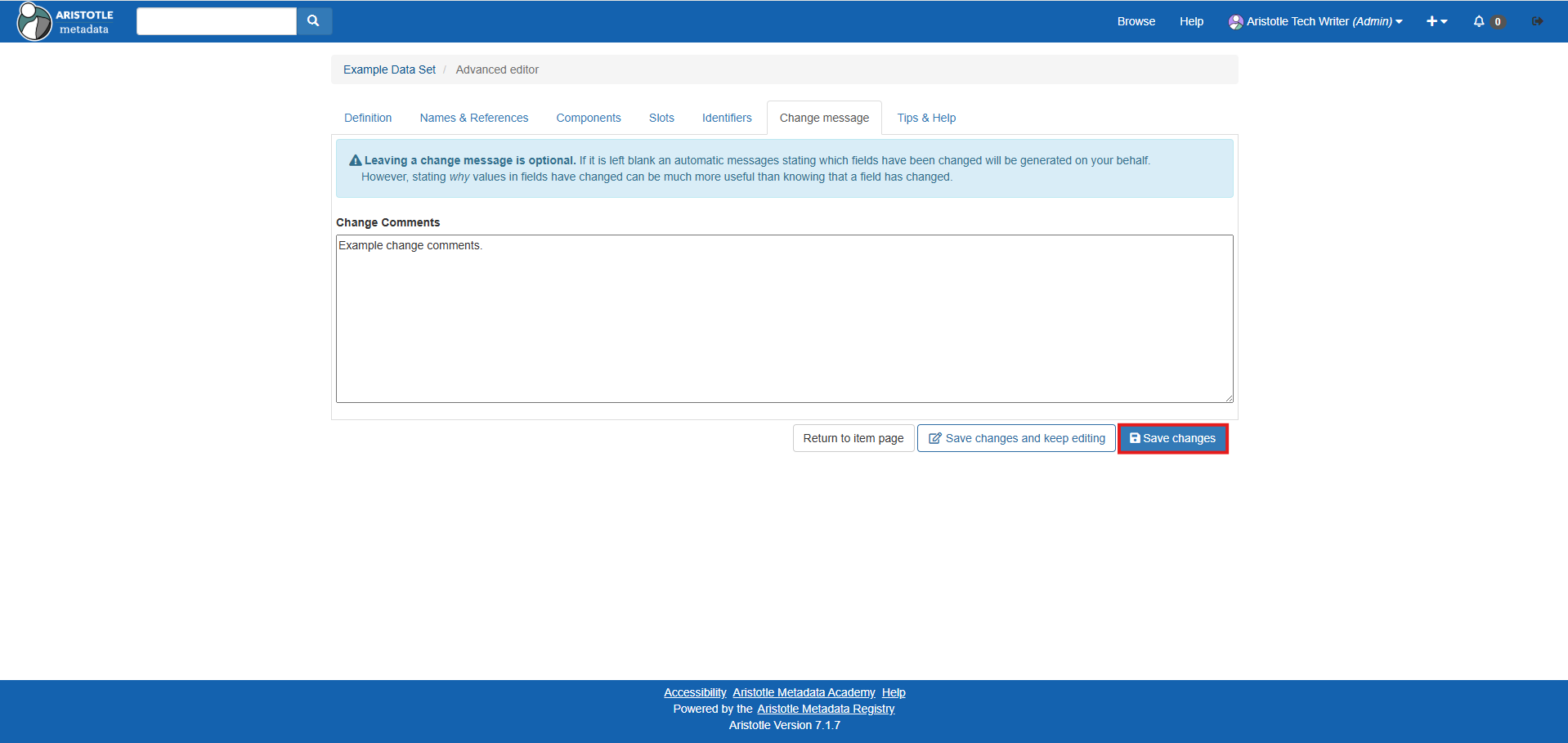
- Change message: A space to specify your reason for editing this data set, or keep a record of those changes.
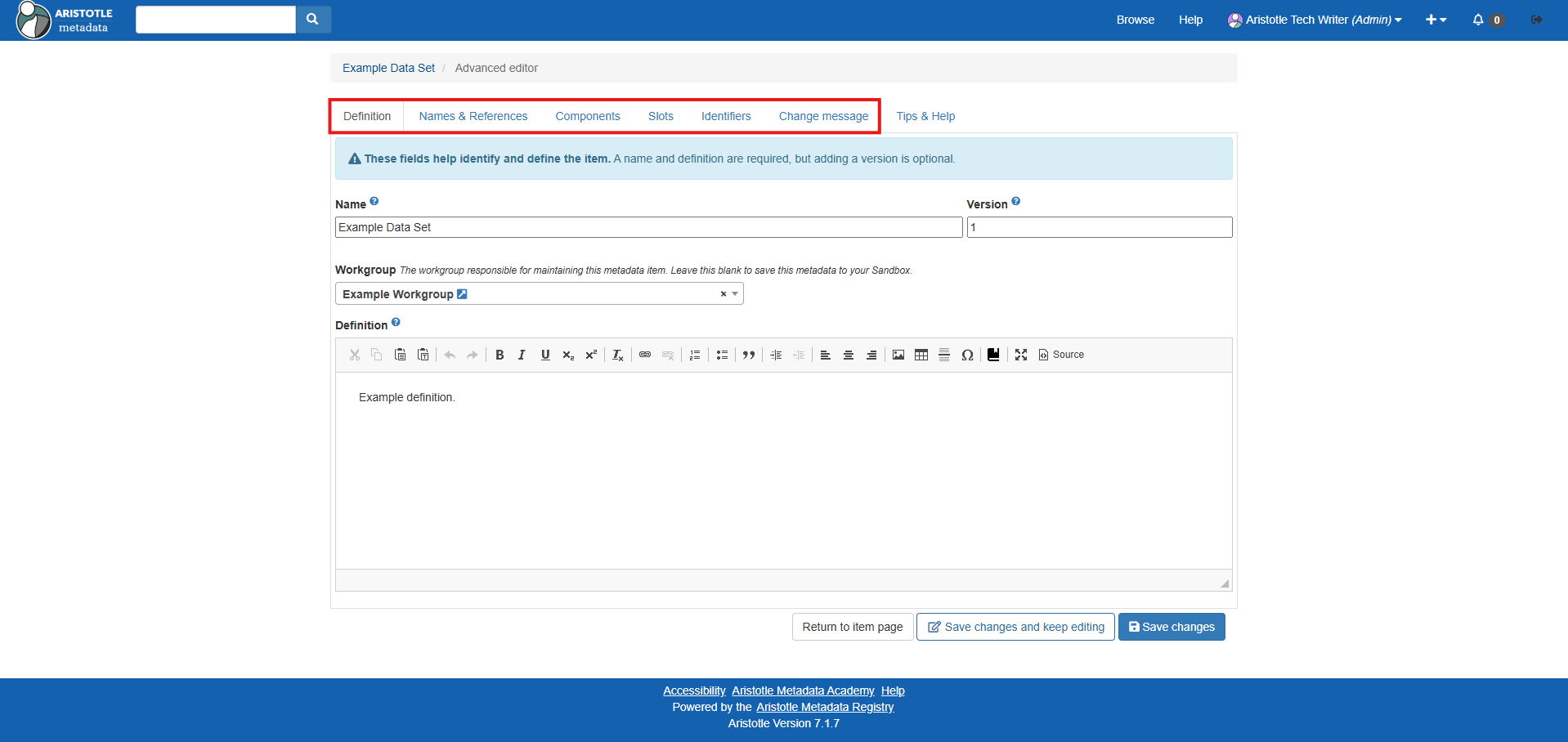
14. Select 'Save changes' once satisfied, and the data set will be configured accordingly!